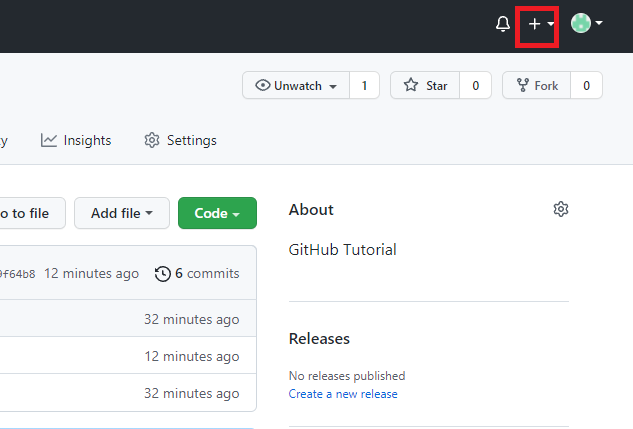
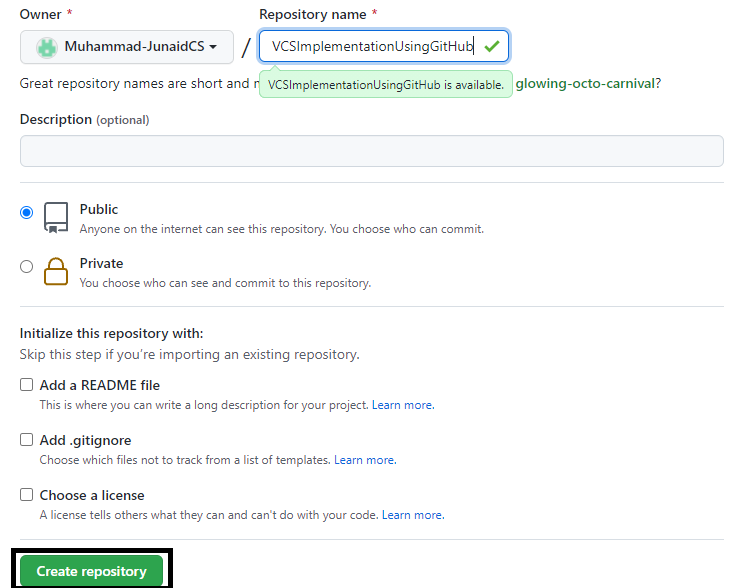
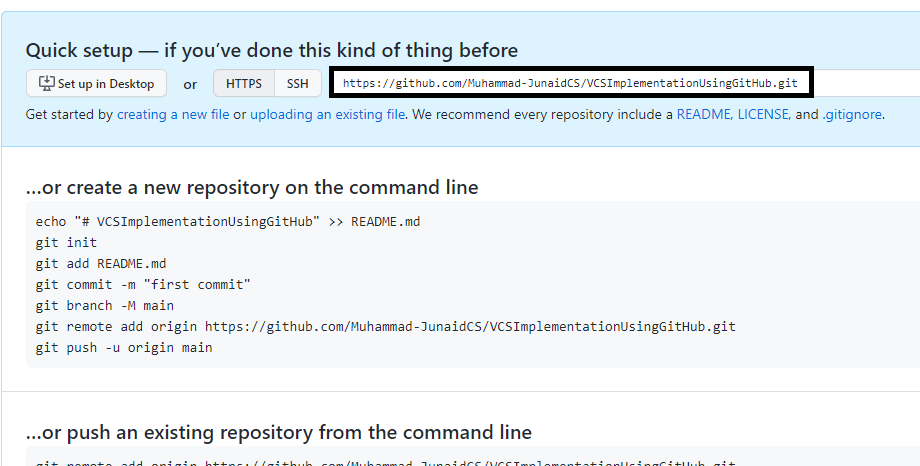
Open directory in terminal and initialize the empty git repository on local machine using commad git init

This command will tell you about files which are modifed,updated or deleted
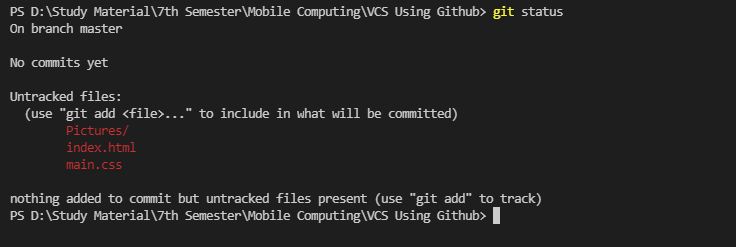
The command git add File-Name (which add particular file to stage area ) or git add . (which add all files of directory to staging area)

Once the files are in staging area, you can save them to commit history usnig coomand git commit -m Message
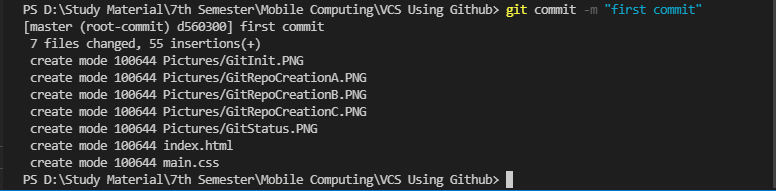
Once the commits have be saved we can send this changes to GitHub.In order to do that we first have to link over local repository which we created using git init and that repository which we created on GitHub, using command git remote add origin URL

Once the coonection between local repository and online repository has been established, we can push our changes to online or central repository so that data remain synchronous by using command git push -u origin Branch-name
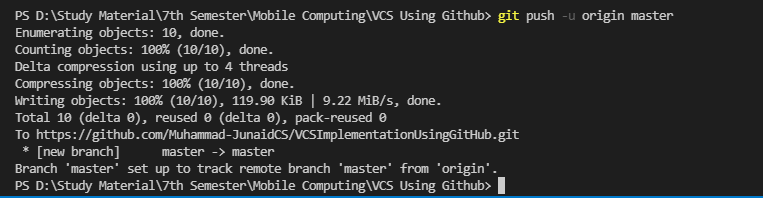
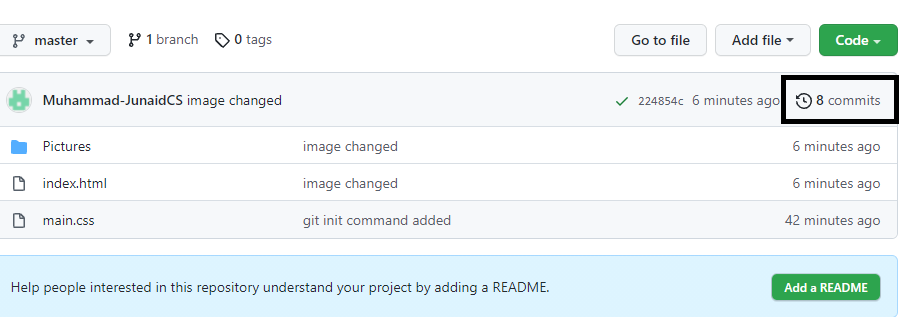
After git push commnad you can see all the changes have be saved in central repository and it also show the no. of commits have been made so far.
This commnad is used to pull the changes made in remote repository to local repository
Consider if our local repository is synchronized with central repository but we we made changes at central repository as well as on local repository and try to push our loacl changes to online repository we will shown an error message like remote contain work that you donot contain locally so we have to pull the changes from remote to loacl first using command git pull and then push it back after selecting changes we want to retain in case of same line changes in central and local repository using command git push -u origin Branch-Name
The commnad git clone URL is used to clone or copy the central repository in your machine and we can use that code for any purpose.